
Introduction
If you’ve ever wondered how to measure laptop size, you’re not alone. Most people assume the size printed on the box tells the full story. However, laptop size usually refers to the screen measured diagonally, not the laptop’s physical body. To measure it correctly, you need to check the screen diagonal in inches and then measure the width, depth, and thickness of the laptop body. These steps help you choose the right case, bag, desk setup, or replacement accessory.
This guide explains everything in plain English. You don’t need technical skills or special tools. By the end, you’ll know exactly how to measure your laptop screen, understand laptop dimensions, and avoid common mistakes that lead to poor fit or wasted money. The steps below reflect current laptop designs and are updated for 2025.
What Laptop Size Really Means
Screen Size vs Laptop Physical Size
Laptop size usually means screen size, not how big the laptop feels in your hands. Manufacturers calculate screen size using a diagonal measurement across the display panel. This diagonal measurement technique ignores the bezel and the laptop chassis.

However, the laptop’s physical size includes width, height, and depth. For example, two laptops can both have a 13-inch screen but very different bodies. Thin bezels, screen-to-body ratio, and device form factor all affect how large a laptop feels in real use.
Why Screen Inches Can Be Misleading
Laptop screen inches only describe the display area, not portability. A gaming laptop and an Ultrabook may share the same screen size but differ greatly in weight and thickness. Therefore, relying only on screen inches can lead to problems when buying sleeves, backpacks, or stands.
In addition, modern aspect ratios like 16:10 or 3:2 change how tall or wide the display looks. That’s why understanding both screen size and physical dimensions matters.
How Do You Measure Laptop Size Correctly
Tools You Need Before Measuring
Before you start, gather simple tools you likely already have. A flexible tape measure works best because it follows curves and edges. A soft tailor’s tape or a household tape measure works fine. Avoid rigid rulers since they’re too short and inaccurate for diagonal measurement.
Also, place your laptop on a flat surface with good lighting. Turn it on so you can clearly see where the display panel begins and ends. This setup improves measurement accuracy.
Step-by-Step Laptop Measurement Method
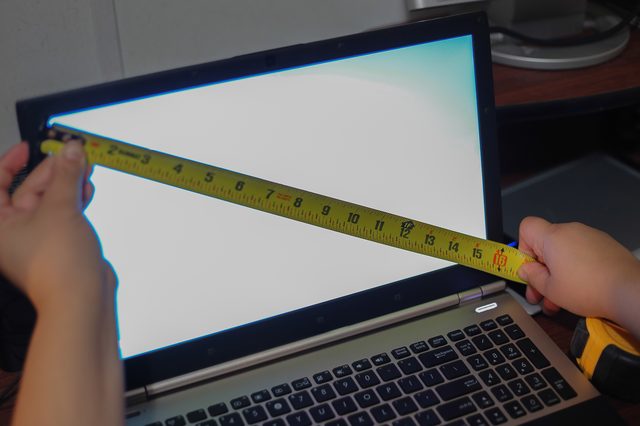
Start by opening your laptop fully. Place the tape measure at one of the bottom corners of the visible screen. Then measure diagonally to the opposite top corner. This measurement gives you the screen diagonal, which determines the laptop category, like 13-inch or 15.6-inch.
Next, close the laptop. Measure the width from the left edge to the right edge, including rounded corners. After that, measure depth from the back hinge to the front edge. Finally, measure thickness at the thickest point, often near the hinge. Write all measurements down in inches and centimeters for future reference.
Measuring Laptop Screen Size Accurately
Diagonal Measurement Technique Explained
The diagonal measurement technique defines laptop screen size worldwide. You measure from one corner of the display panel to the opposite corner. This method works because screens scale proportionally, regardless of resolution or aspect ratio.
Always measure the visible display area only. Don’t include the bezel, frame, or protective glass. Even a small mistake here can change the final screen size category.
Laptop Screen Ratio and Aspect Ratio Basics
Aspect ratio describes the shape of the screen. Common options include 16:9, 16:10, 3:2, and 4:3. A 16:9 screen looks wider, while a 3:2 screen looks taller.
Although the aspect ratio doesn’t change the diagonal size, it affects usable space. For example, taller screens feel better for reading and work. Understanding this helps you choose accessories that fit your workflow.
Measuring Laptop Dimensions Beyond the Screen
Width and Height of Laptop Body
Laptop dimensions include width and height, also called depth. Width measures side to side, while height measures front to back when closed. These numbers matter for desk placement and backpack compatibility.
Always include curves and edges. Even slim chamfers add millimeters that affect fit. Measuring twice improves confidence, especially if you plan to buy a snug laptop sleeve.
Laptop Thickness and Form Factor
Thickness affects portability more than most people expect. Ultrabooks usually measure under 0.7 inches thick, while gaming laptops often exceed 1 inch. This difference changes how a laptop fits into tight bags.
Measure thickness at the thickest point. Ports, vents, and hinges often create uneven profiles. Knowing this helps you avoid forcing your laptop into a case that’s too tight.
How to Measure a Laptop Without a Tape Measure
Using Paper or Household Objects
If you don’t have a tape measure, you can still estimate laptop size. A standard US letter sheet measures 8.5 by 11 inches. Place it diagonally across the screen to estimate display size.
You can also use a credit card for rough comparisons since it measures about 3.37 inches wide. Although this method lacks precision, it helps identify standard laptop sizes like 13-inch or 15.6-inch.
Checking Manufacturer Specs Online
Another option involves checking manufacturer specs. Brands like Apple, Dell, HP, and Lenovo list exact laptop dimensions on their websites. Searching your model number usually brings up official measurements.
This method offers high accuracy. However, it fails if your laptop has been modified with skins, cases, or extended batteries.
How Laptop Screen Size Is Calculated
Display Area vs Body Size
Manufacturers calculate screen size based on the display panel only. They ignore bezel size, chassis thickness, and external frame. This method standardizes sizing across brands.
However, slim bezels make modern laptops feel smaller than older models with the same screen size. This change explains why newer laptops feel more portable even when the screen inches stay the same.
Screen Resolution and Perceived Size
Screen resolution doesn’t affect physical size, but it changes how content looks. Higher resolution packs more pixels into the same space. As a result, text and images appear sharper but sometimes smaller.
For example, a 14-inch screen with high resolution may show more content than a 15-inch screen with lower resolution. Therefore, perceived size differs from measured size.
Standard Laptop Sizes Explained
Common Laptop Categories in the US
Standard laptop sizes include 11-inch, 13-inch, 14-inch, 15.6-inch, and 17-inch. Each category suits different needs. Smaller sizes favor portability, while larger sizes support multitasking.
In the US market, 15.6-inch laptops remain popular for home and office use. Meanwhile, 13-inch and 14-inch models dominate travel and student segments.
Ultrabook vs Notebook vs Gaming Laptop
The laptop category affects dimensions beyond screen size. Ultrabooks focus on thin profiles and lightweight designs. Notebooks offer balanced performance and size. Gaming laptops prioritize cooling and graphics, making them thicker and heavier.
Understanding these categories helps you predict physical size before measuring. It also guides accessory choices like bags and cooling pads.
Measuring Laptop for a Bag or Sleeve
Laptop Fit Guide for Sleeves and Cases
When measuring la aptop for a bag, physical dimensions matter more than screen size. Measure width, depth, and thickness carefully. Sleeve manufacturers usually list internal dimensions, not screen size.
Choose a sleeve slightly larger than your laptop body. Extra space accommodates padding and zipper seams. However, avoid too much extra room since movement increases impact risk.
Backpack and Carry-On Compatibility Tips
Backpacks often advertise compatibility by screen size, but this can mislead. Always check internal compartment dimensions. Some 15-inch backpacks fail to fit thick gaming laptops.
For airline travel, consider under-seat space limits. Slim laptops fit more easily, while bulky models require overhead storage.
Common Laptop Measuring Mistakes to Avoid
Measuring the Bezel Instead of the Screen
Many beginners measure the entire lid, including the bezel. This mistake inflates the screen size and leads to buying the wrong accessories. Always measure the visible display only.
Turning the laptop on helps you see the exact screen boundary. This simple step prevents most errors.
Ignoring Thickness and Weight
Thickness often gets ignored, yet it causes many fit problems. A laptop may slide into a sleeve width-wise but fail to zip due to thickness.
Weight also matters for comfort. Measuring dimensions without considering weight can result in an uncomfortable carry setup.
Real-Life Examples of Laptop Measurements
Example: 13-Inch MacBook Air
A 13-inch MacBook Air measures roughly 11.97 inches wide, 8.46 inches deep, and 0.44 inches thick. Despite the small screen size, thin bezels maximize display area.
This example shows why physical dimensions matter more than screen inches for accessories.
Example: 15.6-Inch Gaming Laptop
A typical 15.6-inch gaming laptop measures around 14.2 inches wide, 10 inches deep, and over 1 inch thick. The added thickness supports cooling and performance.
Therefore, a sleeve designed for slim 15-inch laptops may not fit gaming models.
Pros and Cons of Different Laptop Sizes
Small Laptops (11–13 Inches)
Small laptops excel at portability. They fit easily into bags and feel light during travel. Battery life often improves due to lower power demands.
However, limited screen space can reduce productivity. Users who multitask heavily may feel cramped.
Medium to Large Laptops (14–17 Inches)
Medium and large laptops offer more screen real estate. They work well for editing, gaming, and multitasking. External monitors become less necessary.
On the downside, size and weight increase. Carrying these laptops daily may feel tiring.
Action Checklist After Measuring Your Laptop
What to Do With Your Measurements
Once you finish measuring, save the numbers in your phone or cloud notes. Keep both inches and centimeters for convenience. This habit saves time during future purchases.
Next, compare measurements with accessory specs before buying. Always check internal dimensions, not marketing labels.
When to Re-Measure Your Laptop
Re-measure if you add a case, skin, or extended battery. These changes alter thickness and fit. Also, re-measure if you plan international travel where bag standards differ.
Staying updated prevents surprises and returns.
Limitations and Who This Guide Isn’t For
Measurement Accuracy Limits
Manual measurements may vary slightly due to human error. Minor differences rarely matter for accessories, but can affect precision setups like custom mounts.
Professional designers may require manufacturer specs for exact tolerances.
Who Should Use Other Methods
If you design hardware or manufacture accessories, thisbeginner’sr guide may feel too basic. In those cases, rely on CAD files and official schematics.
For everyday users, however, these steps work reliably.
FAQ’s
How do you measure laptop size if the screen is broken?
You can measure the screen opening diagonally where the display would appear. Checking manufacturer specs also works well.
Is laptop size measured diagonally or horizontally?
Manufacturers calculate laptop screen size diagonally from corner to corner.
Can I use screen size alone to determine the best laptop case?
Screen size helps, but you should also measure width, depth, and thickness.
How do you measure laptop size for travel bags?
Measure the physical dimensions of your body and compare them with the bag’s internal compartment size.
Conclusion
Now you know how to measure laptop size with confidence and accuracy. The key involves measuring the screen diagonally and then checking the laptop’s width, depth, and thickness. Save these numbers, compare them carefully, and use them whenever you shop for cases, bags, or accessories. Accurate measurements protect your laptop, save money, and make everyday use more comfortable.







4 Comments