
Introduction
Screen recording lets you capture exactly what happens on your phone as a video. You can use it to explain an app, save a video call moment, report a bug, or create a simple tutorial. If you’re wondering how to add screen recording on a mobile device, the short answer is this: most modern Android phones and iPhones already include a built-in recording feature—you just need to turn it on or add the shortcut.
In this guide, you’ll learn how to enable recording on mobile step by step. We’ll cover Android and iPhone separately, explain why the option might be missing, and help you choose the safest alternatives if your phone doesn’t support it. Everything is written for complete beginners, using simple language, and updated for 2025 devices.
What Screen Recording Means on a Mobile Device
Screen recording explained in simple terms
Recording creates a video recording of whatever appears on your phone. For example, if you open an app, scroll a page, or tap buttons, the recorder captures all of it as a video file. Many phones also let you record audio at the same time.

In addition, screen recording works as a built-in capture tool on most smartphones. You don’t need special skills or editing experience to use it. Once you start the recording, your phone handles the rest automatically.
What screen recording can and can’t capture
works well for most everyday tasks. However, it doesn’t capture everything. Understanding these limits helps you avoid frustration later.
What it usually captures:
- App activity and settings changes
- Tutorials, walkthroughs, and demos
- Games and basic system actions
What it may block:
- Banking or payment apps
- Some streaming services
- Secure work apps with protection enabled
How to Add a Screen Record on a Mobile Device Using Android
Check if your Android phone already has a recording
Most Android phones running Android 11 or newer include a built-in recorder. Brands like Samsung, Google Pixel, OnePlus, and Motorola support it by default. However, the shortcut doesn’t always appear on the main screen.
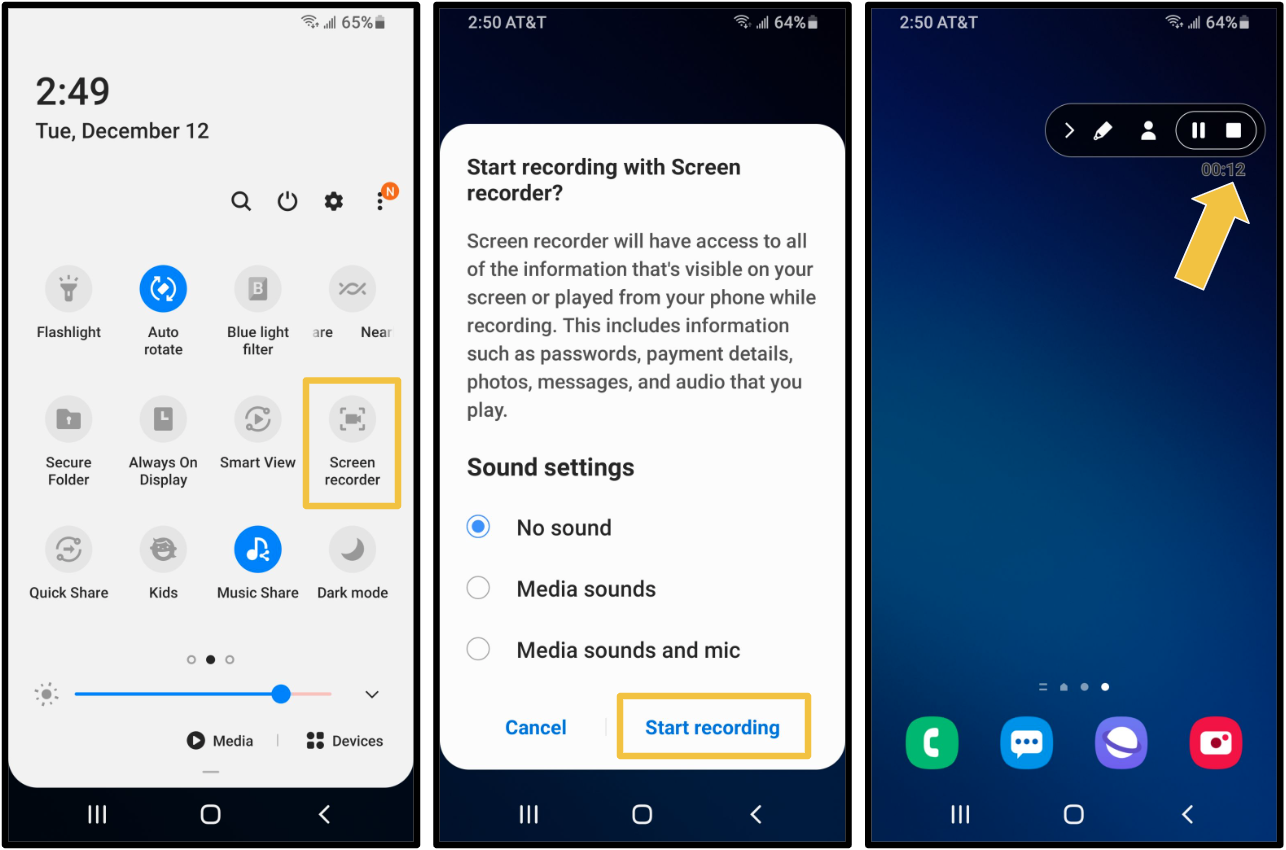
To check quickly, swipe down from the top of your screen once or twice. Look for an icon called Screen Record or Recorder. If you don’t see it right away, don’t worry. The feature may still exist, but it’s hidden in the quick settings panel.
Add screen record shortcut from the Quick Settings panel
Adding the record shortcut takes less than a minute on most phones. For example, Samsung and Pixel devices use a similar setup.
Steps to add a record on Android:
- Swipe down twice to fully open the Quick Settings panel
- Tap the Edit or pencil icon
- Find Screen Record in the available tiles
- Drag it into your active panel
- Exit edit mode to save
After that, you can start recording on mobile with one tap. Therefore, you don’t need any extra apps for basic use.
How to Turn On Screen Recorder Settings on Android
Enable recording permissions properly
Even after you add the shortcut, Android may ask for permission settings. These settings control audio, notifications, and touch indicators.
When you tap Screen Record, Android may ask:
- Whether to show touches on mobile
- Whether to allow notifications
Choose the options that match your goal. For example, tutorials work better when touch indicators stay on.
Adjust audio and video quality options
Some Android phones offer extra controls under device settings > recorder. These options help you improve quality without extra apps.
Common options include:
- Video resolution (HD or Full HD)
- Frame rate (smoothness)
- Audio source selection
However, budget phones may limit these settings. In that case, the default options still work fine for most beginners.
How to Add a Screen Record on a Mobile Device Using an iPhone
Add screen recording to iOS Control Center
iPhones don’t show recording by default. Apple hides it inside Control Center settings, which confuses many new users.
To add it, follow these steps:
- Open Settings
- Tap Control Center
- Find Recording
- Tap the green + icon
Once added, swipe down from the top-right corner of your to access it. Older iPhones with a Home button use an upward swipe instead.
Start screen recording on iPhone the right way
To start recording, tap the Record button in Control Center. A short countdown appears, giving you time to prepare.
If you want audio, press and hold the button first. Then, turn on the microphone option. This trick helps when you need voice explanations in your video.
How to Enable Screen Capture on Android and iPhone Safely
Built-in screen recorder vs third-party apps
Built-in recording features offer better safety and stability. They also respect system privacy rules more consistently.
However, third-party recorder apps add features like:
- Video editing tools
- Floating controls
- Advanced resolution options
On the other hand, these apps may show ads or request risky permissions. Therefore, beginners should always try the built-in recorder first.
When you should avoid screen recording
isn’t always the right tool. Some situations require caution.
Avoid recording when:
- Sensitive personal data appears on mobile
- Workplace apps restrict recording
- You plan to share private conversations
In the USA, recording laws vary by state. Always inform others before recording calls or messages.
Why Your Mobile Doesn’t Show the Screen Record Option
Common reasons the screen record icon is missing
Many users panic when they can’t find the record. However, the cause is usually simple.
Possible reasons include:
- Android version below 11
- The manufacturer removed the feature
- Work or school device restrictions
- recorder disabled by admin
Therefore, checking your system version solves the mystery quickly.
How to fix the missing screen record icon step by step
If your phone supports recording but hides it, try these steps:
- Update your mobile operating system
- Reset the quick settings layout
- Search “recorder” in device settings
- Restart your phone
If none of these work, your phone may not support the feature natively.
Best Free Screen Recorder Apps for Mobile Devices
Safe recorder apps for Android beginners
If built-in tools fail, third-party apps offer a backup option. However, not all apps deserve trust.
Reliable options include:
- AZ Recorder
- XRecorder
- ADV Recorder
Choose apps with high ratings and clear privacy policies. Avoid apps that demand unnecessary permissions.
What to check before installing a screen recorder app
Before installing any recorder, review these points:
- No watermark in the free version
- Clear audio recording support
- Limited ads
- Regular updates
For example, apps with outdated updates often cause crashes or battery drain.
Real-Life Examples of Using Screen Recording on Mobile
Everyday situations where recording helps
aren’t just for creators. Regular users benefit from it daily.
Common examples include:
- Showing parents how to use an app
- Recording a bug for customer support
- Saving a step-by-step process
In addition, recording reduces long explanations. A short video often explains better than text.
When screen recording saves time and stress
Imagine troubleshooting a phone issue with support. Instead of explaining steps, you record the problem once. Support teams understand faster, and solutions arrive sooner.
Therefore, recording works as a time-saving communication tool.
What to Do After You Add a Screen Record on Your Phone
Quick checklist after setup
Once recording works, test it immediately.
Do this first:
- Record a 10-second test video
- Check audio clarity
- Confirm video saves correctly
- Review storage space
Testing early avoids problems later when you need the feature urgently.
Tips for better screen recordings on mobile
Small adjustments improve video quality noticeably.
Helpful tips include:
- Enable Do Not Disturb mode
- Close unused apps
- Record in landscape when needed
- Keep recordings short
Therefore, you get smoother videos without extra effort.
Limitations, Risks, and Who This Guide Isn’t For
Honest limitations of mobile recording
Screen recording consumes battery and storage quickly. Long recordings also heat your phone. Therefore, extended sessions aren’t ideal.
In addition, built-in recorders offer fewer editing tools compared to desktop software.
Who should avoid relying on phone recording
This guide won’t suit everyone. If you create professional training videos or need advanced editing, desktop tools work better.
Likewise, privacy-sensitive environments may block recording entirely. Always follow workplace and legal rules.
FAQ’s
How to add a screen record on a mobile device if it’s not supported?
If your phone doesn’t support it, install a trusted recorder app from the app store. Always review permissions first.
Where do screen recordings save on my phone?
Most recordings save automatically in your gallery or photos app. Android may use a “recordings” folder.
Can I record internal audio on my phone?
Some Android phones support internal audio. iPhones mainly record microphone audio unless apps allow system sound.
Does screen recording drain battery fast?
Yes, long recordings use more battery. Keep sessions short and close background apps.
Is screen recording legal in the USA?
Screen recording is legal for personal use. However, recording calls or private content may require consent depending on your state.
Conclusion
Learning how to add a screen record on a mobile device doesn’t require technical skills or extra tools. Most Android phones and iPhones already include this feature—you just need to enable it, add the shortcut, and adjust a few settings. Start by testing a short recording today, follow the safety tips, and use recording only when it truly helps you communicate or solve a problem.







2 Comments